With years spent in HR trenches, Vasudhendra is passionate about what makes organizations tick—people. Their writing dives deep into behavioral interviews, talent strategy, and employee experience.
author’s Articles
Insights & Stories by Vasudhendra Badami
Whether you're building your first team or scaling culture across regions, Vasudhendra Badami's articles offer human-first insights rooted in real practice.
Thank you! Your submission has been received!
Oops! Something went wrong while submitting the form.
In 2011, Lucy Zhang, Ben Davenport and Jon Perlow joined Facebook and started building the Facebook messenger. A major hurdle in their endeavor was long latency when sending a message. The method that they were using to send messages was reliable but slow. They were also able to optimize it to a certain extent. A few weeks before the launch, they explored the Messaging Queuing Telemetry Transport (MQTT) protocol. With the help of MQTT, Lucy Zhang and team were able to establish and maintain a persistent connection with the Facebook servers without reducing the battery life.
So, what is MQTT protocol?
Created in 1999 by Dr. Andy Stanford-Clark of IBM and Arlen Nipper of Arcom, MQTT is a lightweight messaging protocol on top of TCP/IP protocol. MQTT is designed for constrained devices (devices with low memory and network bandwidth) and wireless networks with varying levels of latency due to unreliable connection.
MQTT protocol is a client-server, publisher/subscriber, open, and light-weight messaging transport protocol. At the heart of MQTT is the central communication point known as MQTT broker. It is responsible for dispersing messages to rightful clients.
Each client which publishes a message to the MQTT broker includes the routing information, known as topic. Clients may subscribe to multiple topics and broker all the messages published matching the topic. The clients don't have to know each other to receive information; they just have to subscribe to relevant topics.
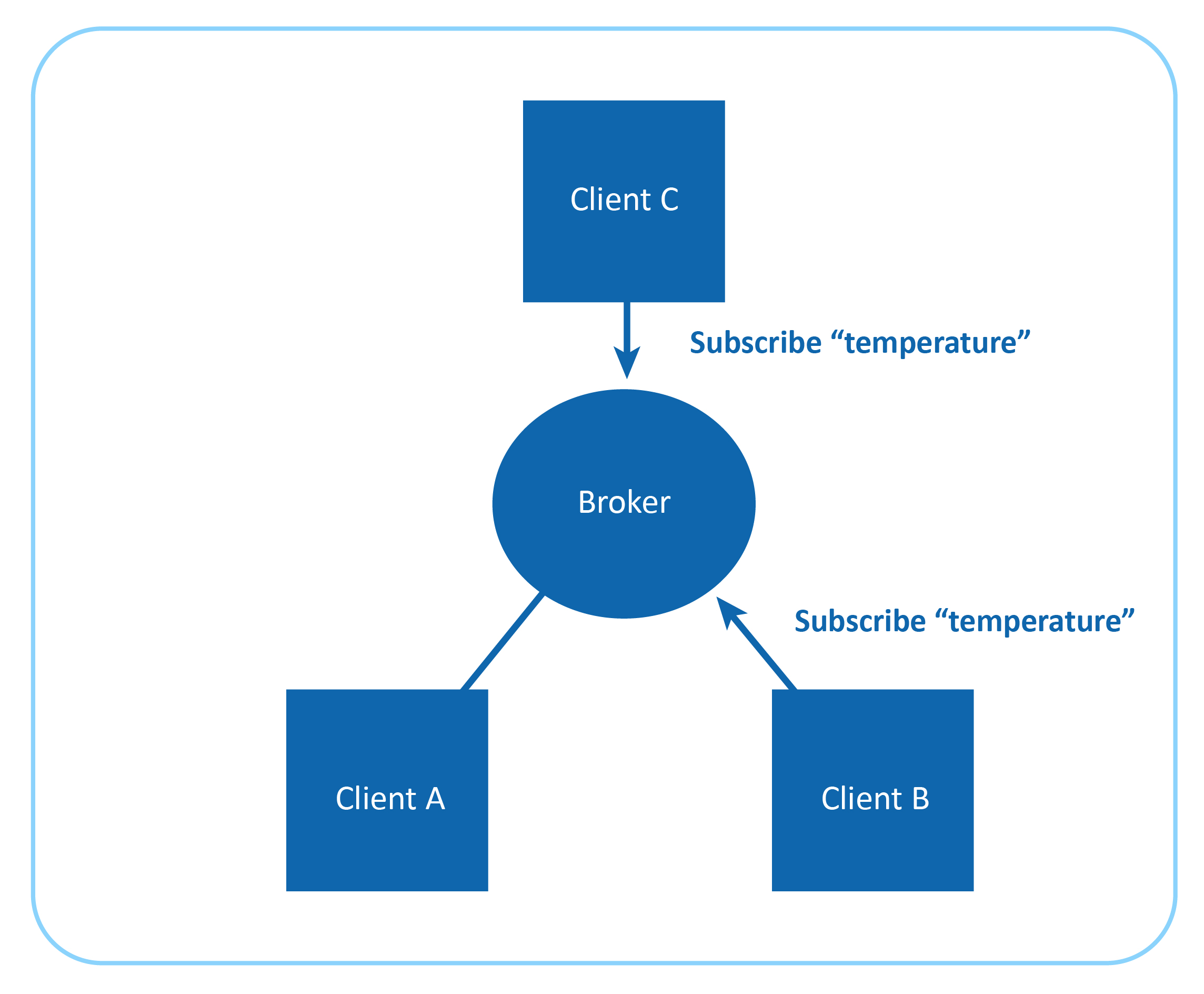
For instance, imagine a simple network of three clients, i.e A, B and C, where each is connected to a broker via a TCP connection. Client-B and Client-C subscribe to topic: temperature.
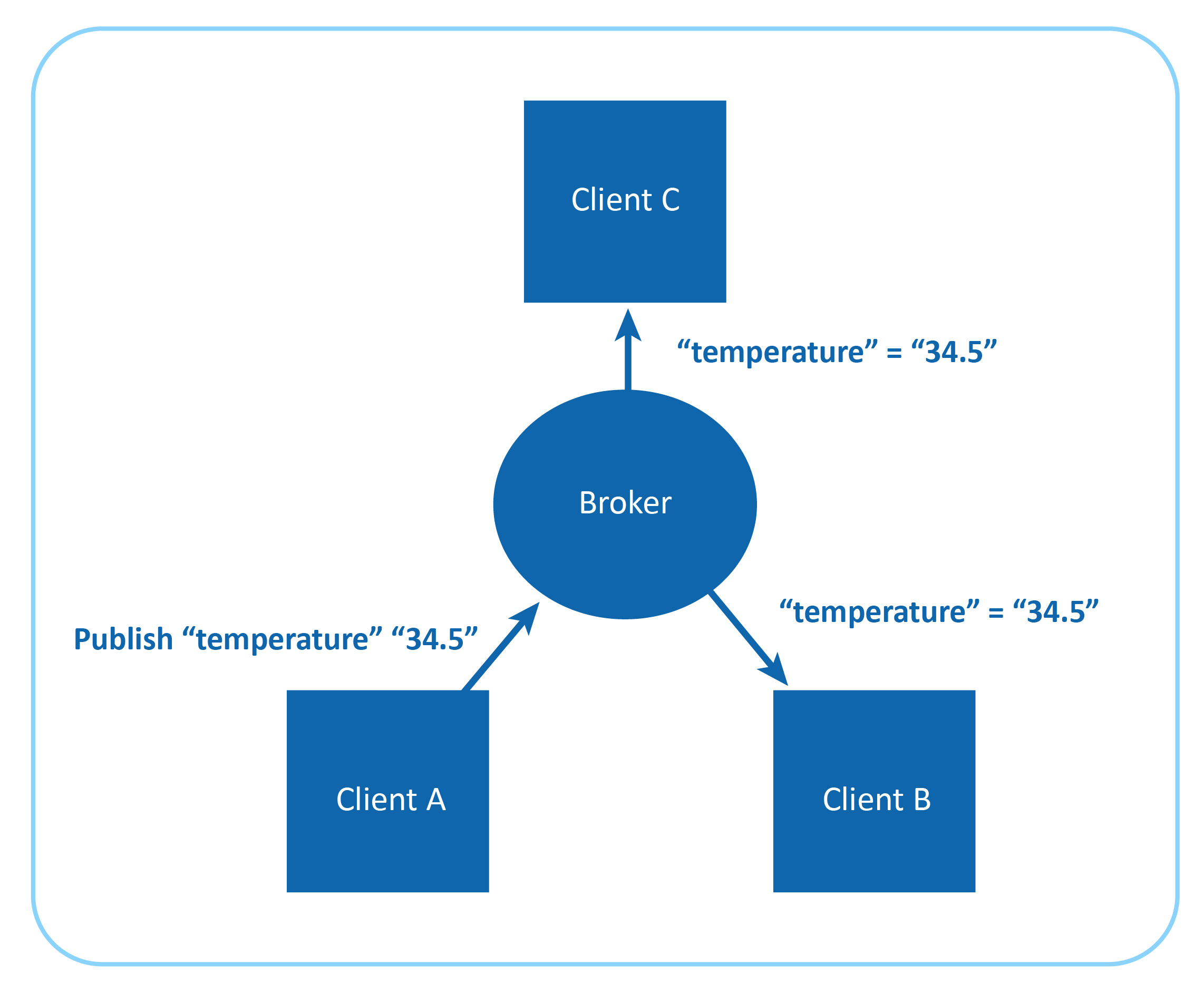
Client-A publishes 34.5 for topic temperature. The broker identifies this and forwards this message to all the subscribers, which in this case are Client-B and Client-C.
The publisher-subscriber architecture of MQTT makes it a highly scalable solution, without creating dependencies between data producers and consumers.
Message format of MQTT protocol
All the messages of MQTT have a small code footprint, hence it is popular as a lightweight messaging protocol. Each MQTT message consists of the following:
Fixed header (2 bytes)
Optional variable header
Message payload (<= 256MB)
Quality of Service (QoS) level
MQTT supports one-to-one, one-to-many, and many-to-many communication.
By lowering the amount of data transmitted, MQTT makes itself a perfect protocol for constrained IoT devices.
Message payloads are encoded in binary. In an open network where the recipient is from a different manufacturer will face issues decoding it as there is no information of how message payload is encoded.
Quality of Service (QoS) level for MQTT protocol
The quality of service levels determines how the content is managed. MQTT uses three different QoS levels. It is important to choose the right QoS level for every message because it determines how the client and server communicate to deliver the message. The QoS levels of MQTT are as follows:
QoS 0 : Messages delivered per the best efforts of the operating environment, but message loss can occur
QoS 1 : Messages delivery assured but duplicates can be created
QoS 2 : Message to deliver exactly once
MQTT provides us with an option to set the appropriate QoS level, but remember, higher the QoS, lower the performance.
Security of MQTT protocol
MQTT allows you to pass username and password as an MQTT packet. Encryption of a message across the network can be handled independently of MQTT with Secure Sockets Layer (SSL). It has a minimal authentication feature built in. Username and password are sent as clear text. To make it secure, Secure Sockets Layer (SSL)/ Transport Layer Security (TLS) must be employed, but SSL/TLS is not a lightweight protocol.
Many industry experts believe MQTT will play a major role in IoT by contributing to fields such as inventory tracking, and medical IoT..
On March 11, 2011, the most intense earthquake in Japanese history hit its north east coast — magnitude 9.0. The earthquake was so powerful that it severely damaged buildings, road, and rail infrastructure in Tokyo, which was 373 km away from the epicenter. This was an undersea megathrust earthquake.
Fifty minutes after the earthquake, tsunami waves as high as 13 meters hit the eastern part of Japan, leaving more than 15,500 dead, 6,000 injured, and 2,500 people missing. The tsunami struck so hard that it resulted in a Level-7 nuclear disaster in Fukushima (in Japanese, Fukushima means Fortune Island); it is the second nuclear disaster in the history of mankind which was given level-7 criticality after the Chernobyl disaster in 1986.
Fukushima had six separate boiling water reactors maintained by Tokyo Electric Power Company (TEPCO). Due to the powerful earthquake and tsunami, the nuclear power plant in Fukushima was subjected to serious structural damage. This resulted in hydrogen-air explosion on top of each nuclear reactor, releasing huge amounts of radioactive particles including Iodine-131, Caesium-134/137, Tellurium-129m, and Strontium 90 into the atmosphere. These radioactive particles contaminated air, soil, and water in and around Fukushima.
Unfortunately, Fukushima was one of the most agriculturally important regions in Japan. There are close to two million farmers in Japan, of which 70,000 are in Fukushima. The farmers of Fukushima had to deal with radioactive contamination of their soil, crops, livestock, and the marine ecosystem in addition to the tragedy caused by the tsunami. Due to radioactive contamination everywhere, the government of Japan imposed restrictions on the growing and selling of crops, dairy products, and seafood.
Now, Japan needed to increase its production to make up for the agricultural loss in Fukushima and, very importantly, it needed food products without radioactive contaminants. If this is not achieved, Japan would head toward a food crisis.
In Kameoka (a satellite town to the west of the Japanese city of Kyoto), the Japanese agriculture technology company SPREAD had started working on a smart farming system on barren land. SPREAD built a vegetable factory in a 2868.22 m2-area.
Inside the doors of this warehouse-like agriculture complex, SPREAD uses vertical farming system.
SPREAD vegetable factory grew lettuce in a soil-less and sunless ecosystem.
Inside SPREAD vegetable factory
In an interview with CNN on September 19, 2016, Shinji Inada, the president of SPREAD, said, "The turning point was the incident in 2011 at the Fukushima nuclear facility. After what happened there, people became more aware of the importance of safe food and it kind of turned the tables for us."
Here a sophisticated form of hydroculture known as the Hydroponics method is used, where plants are grown in an aqueous solution of mineral nutrients with water as a solvent. In this method, terrestrial plants are grown with roots exposed to a mineral nutrient solution.
Hydroponics method of farming
Since this is an indoor farm, LED lights on top of each shelf provide adequate light for photosynthesis and the growth of lettuce.
Indoor vertical farm with LED lights on top
At this vegetable factory, human involvement is restricted to sowing the seeds; later, everything till the harvest is taken care of by robots and sensors.
With the help of modern sensor technology, the following factors are measured:
Lighting
Level of nutrients in the mineral solvent
Humidity level inside the setup
Temperature level inside the setup
Level of CO2
To maintain these factors at the optimal level, robots are installed which take corrective measures.
The lettuce is grown in a highly controlled environment at this facility. As a result of not using any fertilizer, the lettuce grown at this agriculture facility is richer in beta-carotene (an antioxidant) than farm-grown lettuce.
The setup has stacker cranes which carry the stacks to the robots for harvesting after they have reached maturity. It takes 40 days for a lettuce head to be ready for harvest, whereas it takes two months for farm-grown lettuce. After the harvest, the lettuces are moved to the packaging section without any outside intervention. There are either retail or packaging boxes wholesale used for that purpose. The SPREAD’s facility at Kameoka has an output capacity of 21,000 lettuces per day.
This innovative move by SPREAD is not only providing vegetables free from radioactive contamination but also contributing to the ecology to a great extent. Here is how:
Water Recycling
Water used for cultivation of lettuce in the vegetable factory is reused after filtration and purification. At this facility, 98% of water is recycled, and it significantly reduces the water consumption—a mere 0.83 liters is used to grow one head of lettuce.
Water recycling system at SPREAD vegetable factory
Zero damage due to pesticides
Since this vegetable factory uses the hydroponics method to cultivate lettuce, pesticides are not required during the cultivation lifecycle. Hence, soil and water contamination is prevented and the balance of microbes and insects in ecosystem is preserved.
Reduction in energy consumption
SPREAD has developed specialized LED lights and an air conditioning system to be used at their vegetable factory, reducing the energy consumption by 30%.
SPREAD is currently working on a second vegetable factory at Keihanna, with an output capacity of 30,000 heads of lettuce per day with 86.7% reduction in water usage.
I have attended several IoT conferences, informal meetups, webinars, and podcasts. The most common questions during networking or Q&A sessions revolve around security and interoperability of IoT devices.
To build consumer trust, companies in the IoT space—both hardware and software—are heavily investing in R&D to tackle these concerns sustainably.
In one such initiative, Canonical, the company behind Ubuntu, launched Ubuntu Core 16. Also known as Snappy, this is a minimal operating system designed for IoT devices. At its core are secure, remotely upgradeable Linux packages called 'snaps'.
Device Security
Ubuntu Core 16 secures IoT devices by delivering the entire operating system—including kernel, libraries, and applications—as snaps. The OS automatically updates to defend against new threats.
Snaps ensure security and reliability through the following features:
Read-only
Tamper-proof
Digitally signed
Stored as images
This architecture makes it very difficult to breach devices remotely without physical access.
Being transactional in nature, Ubuntu Core 16 automatically rolls back any failed updates, giving developers the freedom to innovate without compromising system stability.
The system retains multiple updates and selects the healthiest for installation. If an update fails, rollback ensures continuity.
Each Snap includes a meta/snap.yaml file, where developers can define:
Security requirements
Integration details with the system
Update schedules
This automates the update process, removing the need for human intervention.
Device Interoperability
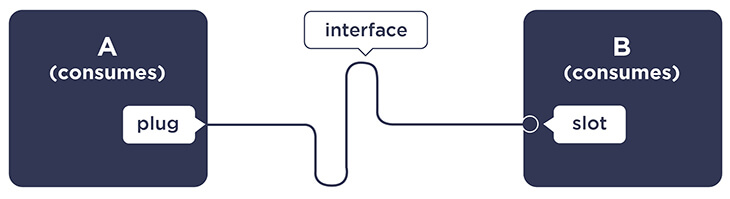
Ubuntu Core 16 enables snaps to communicate and work together via:
Interfaces: Bridges between snaps
Plugs: Consumer snaps requesting services
Slots: Producer snaps offering services
Snaps Interfaces Example
Plug (Consumer Snap)
name: consumer_snap_name
plugs:
  db:
    interface: mysql
Slot (Producer Snap)
name: producer_snap_name
slots:
  db:
    interface: mysql
This setup enables both snaps to share a database. Additionally, snaps can share files with:
Other snaps from the same vendor
Community-maintained shared snaps using content-sharing interfaces
Additional Features of Ubuntu Core 16
Compatible with desktops, servers, and devices like Intel Joule, Qualcomm Dragonboard, Samsung Artik, Raspberry Pi2 and Pi3.
Keeps files compressed and signed using SquashFS blobs, avoiding file scattering across disks.
Compact OS with an image size of only 350 MB.
System and application updates use xdelta diffs—only changed code is updated.
Separation of kernel/device drivers and OS/snaps allows parallel development by different teams.
The term "Ubuntu" originates from Southern Africa and stands for “the belief in a universal bond of sharing that connects all humanity.” While technology can simplify and connect, it must be rooted in ethical principles.
No advanced system can safeguard humanity unless guided by sensible and humane ideologies. Building smart systems begins with building a thoughtful ecosystem of responsible people.
Arduino has become the default starting point for anyone learning hardware programming. Whether you want to build a home automation system, prototype a wearable device, or simply understand how software controls physical components, Arduino gives you an accessible way in.
But getting started with Arduino programming can feel overwhelming. Which board do you pick? What language does it use? How do you go from a blank screen to a blinking LED?
This guide walks you through everything you need to begin. You will learn what Arduino is, what programming language it uses, how to set up your development environment, and how to write, upload, and debug your first programs. By the end, you will have built two working projects and understand the core concepts well enough to tackle more complex ones on your own.
No prior hardware experience is required. If you can write a few lines of code (or want to learn), you are ready.
What Is Arduino?
Arduino is an open-source electronics platform that combines simple hardware with easy-to-use software. At its core, an Arduino board is a small microcontroller that reads inputs (a sensor detecting light, a button press, a temperature reading) and turns them into outputs (turning on an LED, spinning a motor, displaying data on a screen).
The most popular board for beginners is the Arduino Uno R3. It has 14 digital input/output pins, 6 analog inputs, a USB connection for programming, and a power jack. It is affordable, well-documented, and compatible with thousands of tutorials and accessories.
Other boards worth knowing about include:
Arduino Nano: smaller form factor, ideal for compact projects
Arduino Mega: more pins and memory for complex builds
Arduino Nano 33 IoT: built-in Wi-Fi and Bluetooth for connected projects
Arduino Uno R4: the newest generation with improved processing power
For this guide, all examples use the Arduino Uno, but the programming concepts apply to every Arduino board.
What Programming Language Does Arduino Use?
Arduino programming uses a language based on C/C++. If you have written C or C++ code before, Arduino syntax will feel familiar. If you are new to programming entirely, the learning curve is gentle because Arduino simplifies many of the complex parts of C/C++.
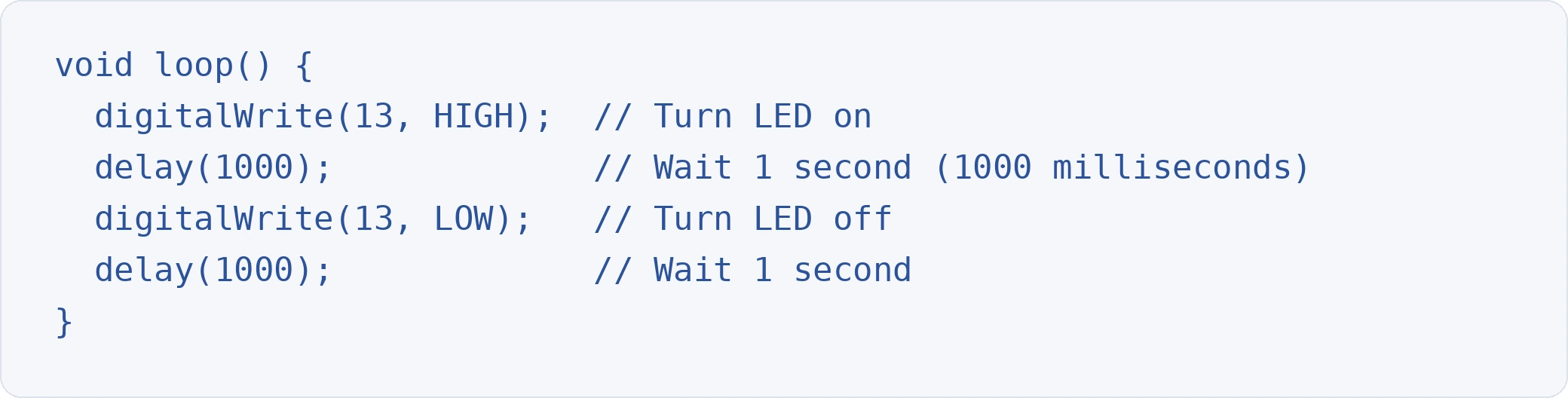
Arduino programs are called sketches. You write sketches using a simplified set of functions and libraries that abstract away low-level hardware interactions. For example, instead of writing raw register commands to control a pin, you call digitalWrite(13, HIGH).
The key distinction: Arduino is not a completely separate programming language. It is C/C++ with a set of built-in functions and libraries designed specifically for microcontroller hardware. This means any valid C or C++ code works in an Arduino sketch, and the skills you build here transfer directly to other embedded programming contexts.
For developers who prefer Python, MicroPython and CircuitPython offer alternatives on compatible boards, though the Arduino ecosystem remains the most widely supported.
Setting Up the Arduino IDE
The Arduino IDE (Integrated Development Environment) is where you write, compile, and upload sketches to your board.
Download Arduino IDE 2.x for your operating system (Windows, macOS, or Linux).
Run the installer and follow the on-screen prompts.
Arduino IDE 2.x is a significant upgrade over the legacy 1.8.x version. It includes an auto-complete code editor, an integrated serial monitor, a built-in debugger, and a streamlined library manager. If older tutorials reference IDE 1.8.x, the same core functionality exists in 2.x with a more modern interface.
Connect Your Board
Plug your Arduino Uno into your computer using a USB cable.
In the IDE, go to Tools > Board and select Arduino Uno.
Go to Tools > Port and select the COM port that shows your board.
If your board does not appear, check that the USB cable supports data transfer (some cables are power-only) and that the correct drivers are installed.
Understanding Arduino Programming Structure
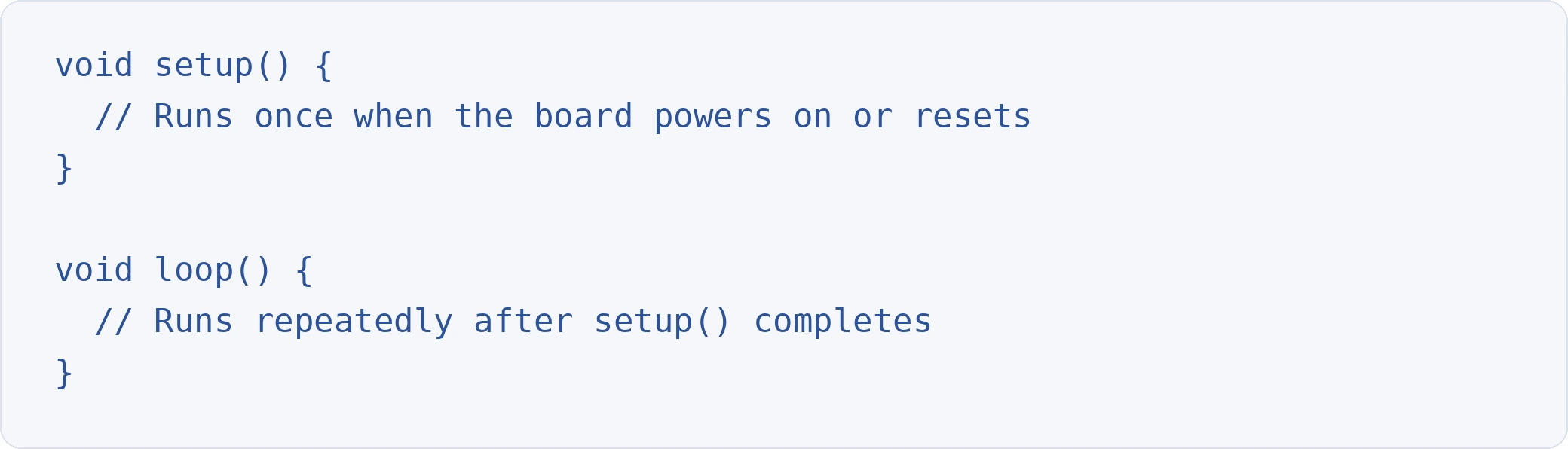
Every Arduino sketch has two required functions: setup() and loop(). This structure is the foundation of all Arduino programming.
The setup() Function
setup() executes once when the program starts. Use it to initialise pin modes, start serial communication, and configure libraries.
The loop() Function
loop() runs continuously after setup() finishes. This is where your main program logic lives. The function repeats from top to bottom indefinitely until the board loses power or is reset.
Important: Arduino measures time in milliseconds. delay(1000) pauses execution for one second.
Arduino Programming Language Basics
Before building projects, you need to understand the core syntax. Here are the essentials.
Variables and Data Types
Variables store values that your program uses. Common data types include:
int: whole numbers (-32,768 to 32,767)
long: larger whole numbers
float: decimal numbers (e.g., 3.14)
boolean: true or false
char: a single character
String: text (e.g., "Hello")
Control Flow
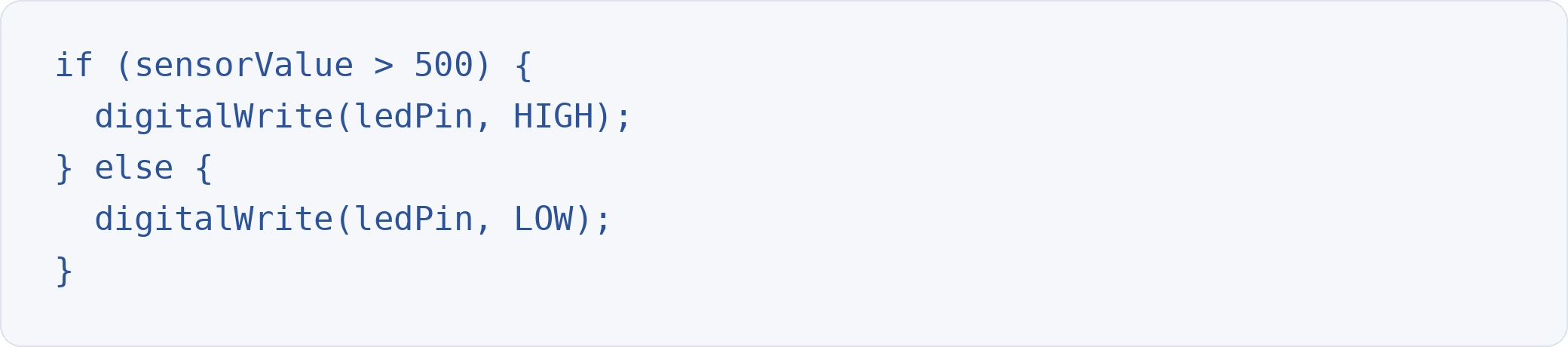
Control flow statements let your program make decisions and repeat actions.
If/else statements:
For loops:
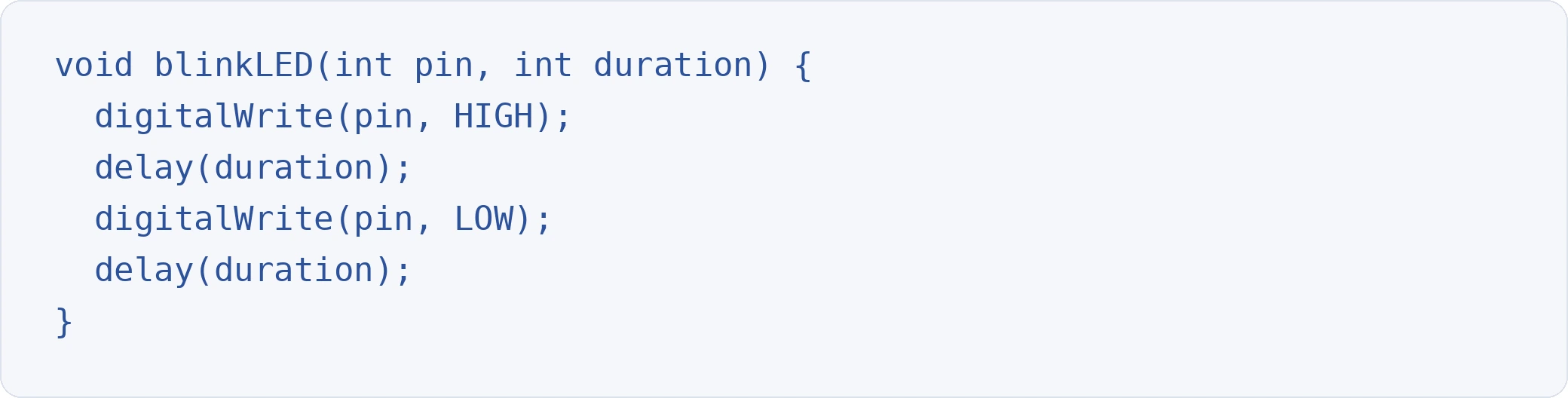
Functions
Custom functions help you organise code into reusable blocks.
Mastering these fundamentals in C/C++ builds a strong foundation. The same concepts appear in coding interview questions across software engineering roles.
Your First Arduino Programming Project: Blinking an LED
The "Hello World" of Arduino programming is blinking an LED. It confirms your hardware, software, and connections all work.
Components Required
Arduino Uno R3
Breadboard
3 jumper wires
1 LED
1x 220Ω or 1KΩ resistor
Circuit Setup
Connect digital pin 13 to the positive rail of the breadboard.
Connect GND to the negative rail.
Place the resistor between the positive rail and a terminal strip.
Insert the LED below the resistor (long leg towards the resistor, short leg towards the negative rail).
Connect the LED's short leg (cathode) to the negative rail.
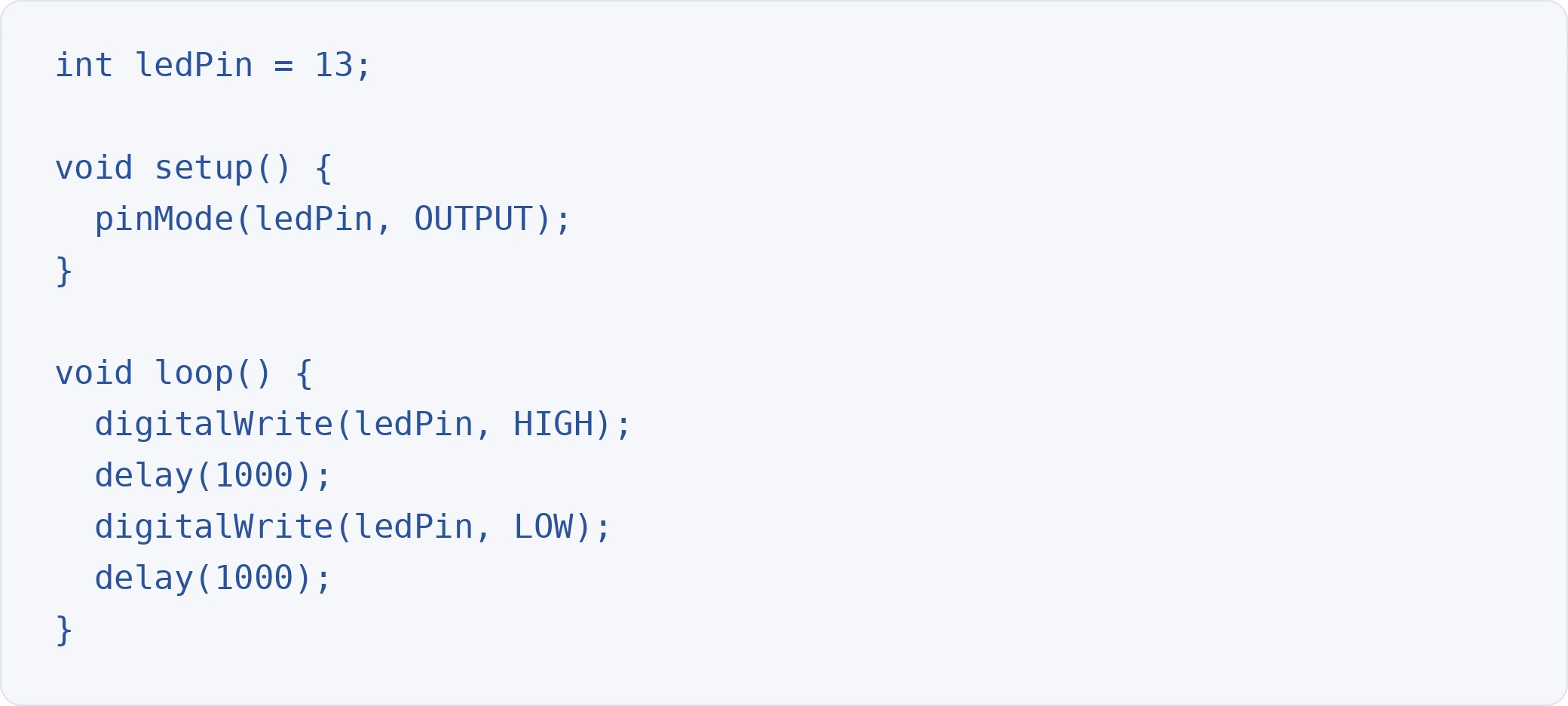
Code
Upload the sketch by clicking the arrow button in the IDE. Your LED should blink on and off at one-second intervals. If nothing happens, check your wiring, confirm the correct board and port are selected, and verify the LED polarity.
Analog Output with PWM: Fading an LED
Digital pins output either HIGH (5V) or LOW (0V). To create smooth brightness transitions, you need Pulse Width Modulation (PWM). PWM rapidly switches a pin on and off to simulate voltage levels between 0V and 5V.
On the Arduino Uno, pins marked with a tilde (~) support PWM: pins 3, 5, 6, 9, 10, and 11.
Circuit Adjustment
Use the same circuit as the blink project, but connect to pin 9 instead of pin 13.
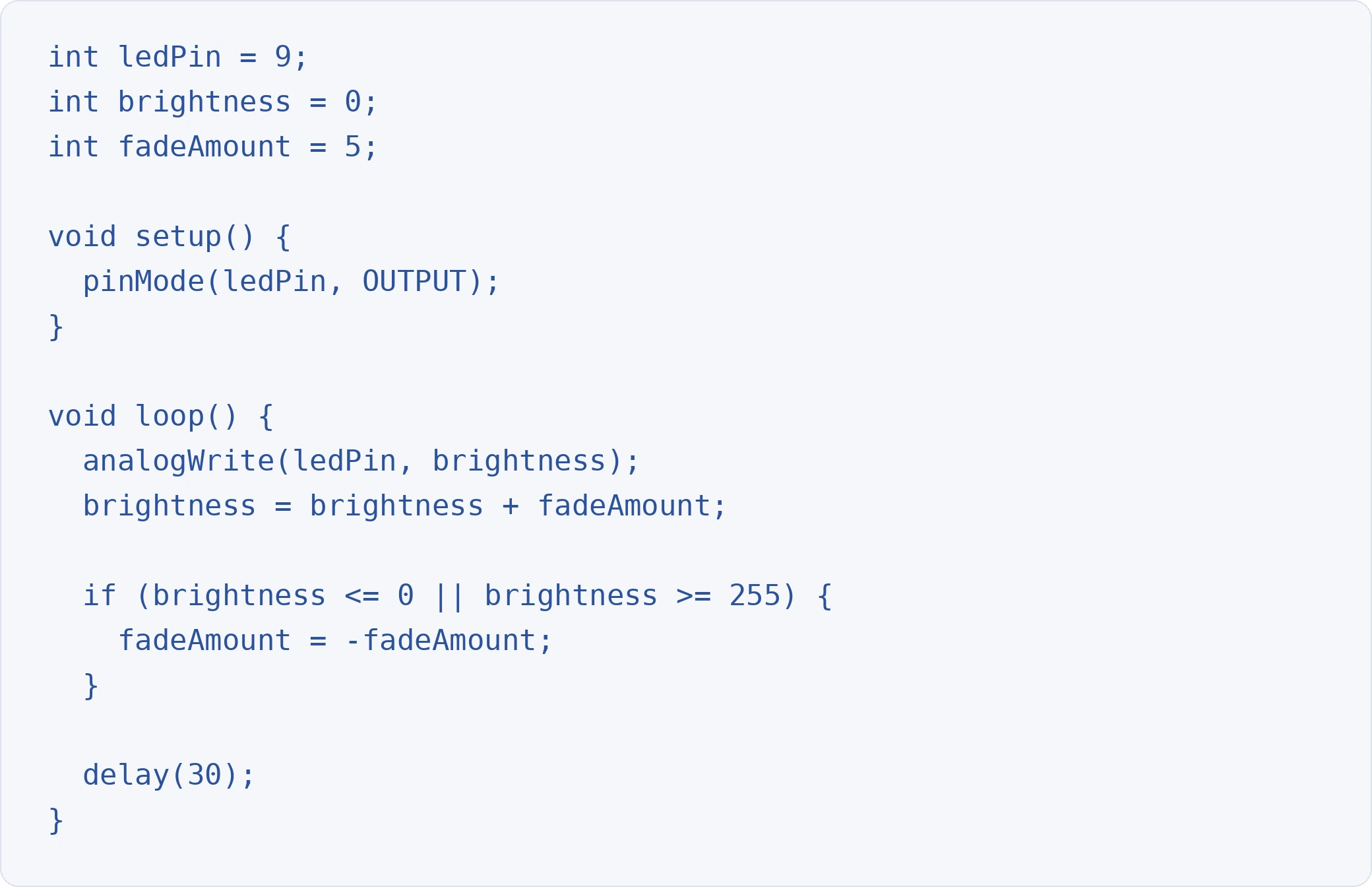
Code
analogWrite() accepts values from 0 (fully off) to 255 (fully bright). The sketch gradually increases brightness, reverses direction at the limits, and creates a smooth fade-in, fade-out effect.
Serial Communication and Debugging
The Serial Monitor is your most valuable debugging tool. It lets you send data from the Arduino to your computer (and vice versa) over the USB connection.
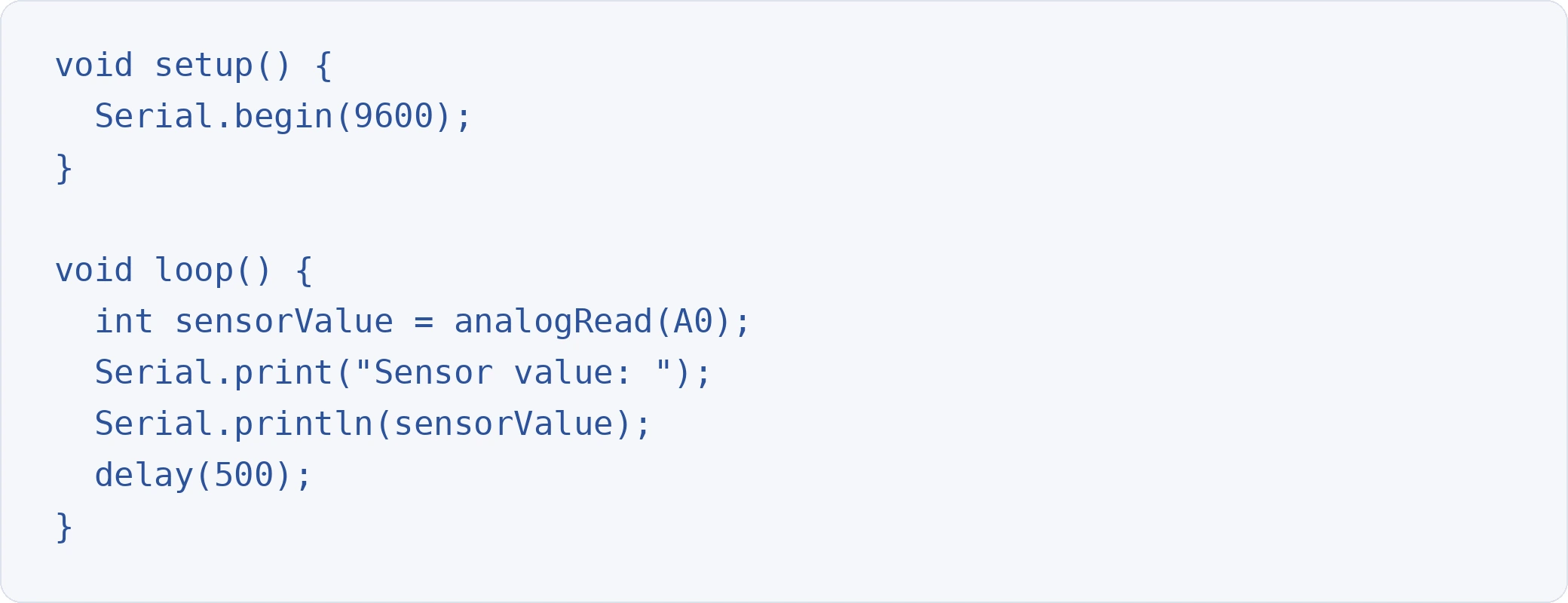
Basic Serial Output
Open the Serial Monitor in the IDE (Tools > Serial Monitor or Ctrl+Shift+M) to see live output. This is essential for reading sensor data, tracking variable values, and diagnosing unexpected behaviour.
Reading Analog Input
The Arduino Uno has 6 analog input pins (A0 through A5). analogRead() returns a value from 0 to 1023, corresponding to 0V to 5V. Connect a potentiometer or light sensor to A0 and use the code above to see real-time values in the Serial Monitor.
Using Arduino Libraries
Libraries extend Arduino's functionality without requiring you to write everything from scratch. They provide pre-built code for sensors, displays, communication protocols, and more.
Installing Libraries
In the IDE, go to Sketch > Include Library > Manage Libraries.
Search for the library you need (e.g., "DHT sensor library" for temperature sensors).
Click Install.
Commonly Used Libraries
Servo: control servo motors
LiquidCrystal: drive LCD displays
DHT: read temperature and humidity sensors
Wire: I2C communication
WiFiNINA: Wi-Fi connectivity for IoT boards
Include a library at the top of your sketch with #include <LibraryName.h>.
Common Mistakes and Troubleshooting
Every beginner hits the same roadblocks. Here are the most frequent issues and how to fix them.
"Board not found" error: Check that your USB cable supports data. Try a different cable or USB port. Reinstall board drivers if needed.
Upload fails: Confirm the correct board and port are selected under Tools. Close any other software using the serial port.
LED does not light up: Verify LED polarity (long leg is positive). Check resistor connections. Test with a different LED.
Code compiles but nothing happens: Add Serial.println() statements to trace execution. Check pin numbers in code match physical wiring.
Sketch behaves unpredictably: Floating input pins read random noise. Use INPUT_PULLUP mode or add external pull-down resistors.
Moving Beyond delay()
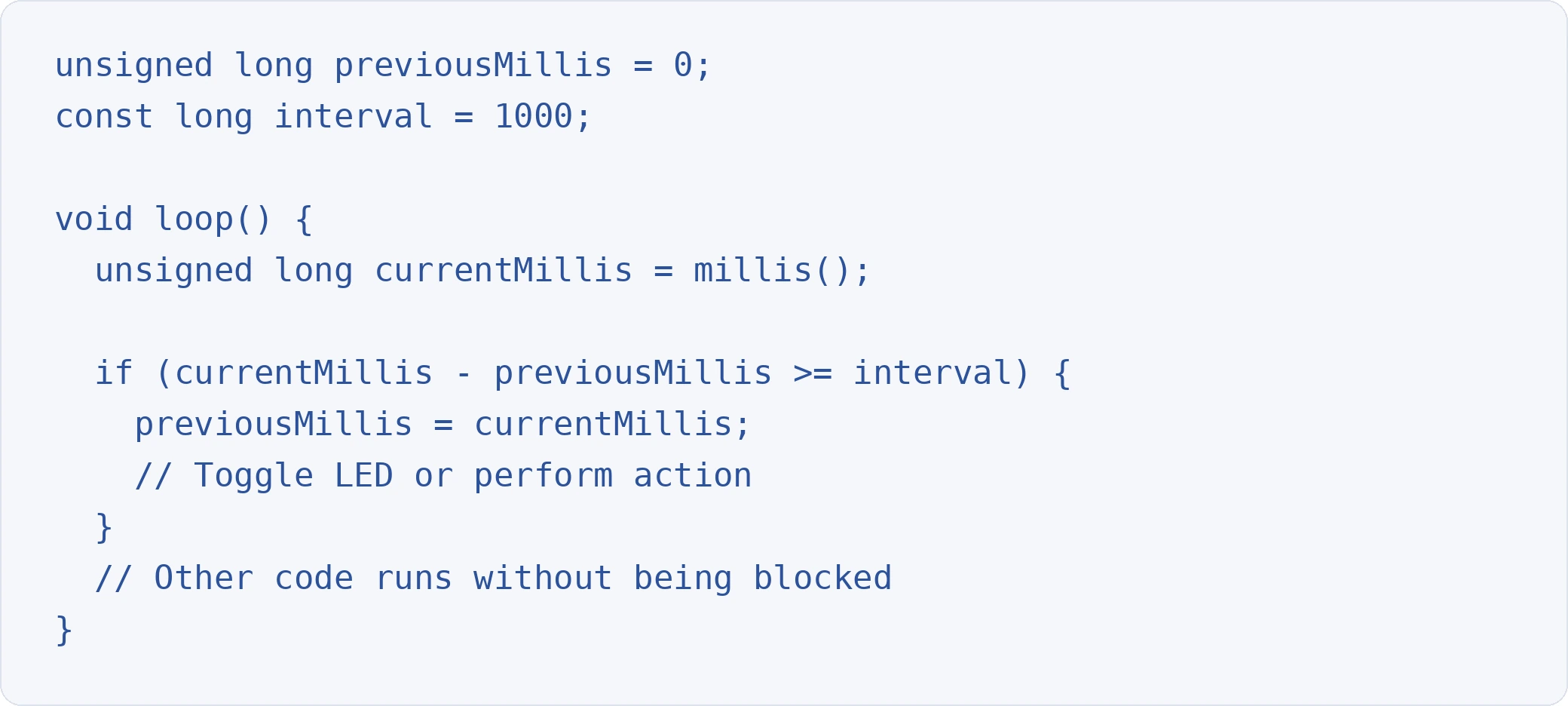
The delay() function pauses your entire program. For simple projects, this is fine. For anything involving multiple inputs or real-time responses, delay() creates problems because the board cannot do anything else while waiting.
The solution is millis(), which returns the number of milliseconds since the program started. Use it to check elapsed time without blocking execution:
This pattern becomes essential as your projects grow in complexity.
Next Steps in Arduino Programming
Once you are comfortable with the basics, here are productive directions to explore:
Sensors: connect temperature, motion, distance, and light sensors to build responsive projects.
Displays: add OLED or LCD screens to show data without a computer.
Motors and actuators: control DC motors, stepper motors, and servos for robotics.
IoT connectivity: use Wi-Fi or Bluetooth-enabled boards to send data to the cloud with Arduino Cloud.
Communication protocols: learn I2C, SPI, and UART to connect multiple devices.
The C/C++ programming skills you build with Arduino are directly applicable to embedded systems engineering, IoT development, and robotics. These are skills that companies actively evaluate when building candidate pipelines for technical roles.
If you want to sharpen your C/C++ fundamentals further, practising on HackerEarth's technical assessment platform offers structured challenges across multiple programming languages.
Frequently Asked Questions
What programming language does Arduino use?
Arduino uses a language based on C/C++. Sketches are written in a simplified version of C/C++ with built-in functions (like digitalWrite() and analogRead()) that make hardware interaction straightforward. Any valid C or C++ code works in Arduino.
How do you program an Arduino board?
You write code (called a sketch) in the Arduino IDE, connect your board via USB, select the correct board and port, then click the upload button. The IDE compiles your code and transfers it to the board, where it runs immediately.
Can you program Arduino with Python?
Not directly through the standard Arduino IDE. However, MicroPython and CircuitPython run on certain Arduino-compatible boards (like the Nano 33 BLE). For most beginners, starting with the default C/C++ environment is recommended because of broader community support and documentation.
How do you stop an Arduino program?
An Arduino sketch runs continuously by design. To stop execution, you can add an infinite empty loop (while(true) {}), press the reset button on the board, or disconnect power. There is no built-in "stop" command equivalent to exiting a desktop application.
What is the difference between setup() and loop()?
setup() runs exactly once when the board powers on or resets. Use it for initialisation (setting pin modes, starting serial communication). loop() runs repeatedly after setup() finishes and contains your main program logic.
Is Arduino good for beginners?
Yes. Arduino is widely considered the most accessible entry point for learning hardware programming. The IDE is free, the boards are inexpensive, the community is massive, and thousands of tutorials cover every skill level from absolute beginner to advanced.
The Arduino Uno is the most widely used microcontroller board in the electronics and maker community. Whether you're wiring your first LED circuit or prototyping a sensor-based IoT device, the Uno is almost always the recommended starting point.
That popularity is well earned. The board costs under $30, works across all major operating systems, and has more community-created tutorials and open-source projects behind it than any other microcontroller platform. It runs on the ATmega328P chip and can be programmed through the free Arduino IDE using a language based on C/C++.
If you're new to the Arduino Uno, the board layout, pin functions, and setup process can feel overwhelming at first. This guide breaks it all down.
You'll learn what the Arduino Uno is and how it compares to other boards, how to read its pinout and power it safely, how to install the IDE and upload your first sketch, and how to build two beginner-friendly LED projects step by step.
What Is the Arduino Uno?
The Arduino Uno is an open-source microcontroller board manufactured by Arduino. It is based on the ATmega328P chip and was named "Uno" (Italian for "one") to mark the release of Arduino IDE 1.0.
The Uno serves as the reference model for the entire Arduino platform. When tutorials, libraries, or shields describe themselves as "Arduino compatible," they almost always mean "tested with the Uno."
Here's what makes it the default choice for beginners and experienced makers:
Low cost: Official boards typically retail between $20 and $28. Third-party clones cost even less.
Massive community: Millions of tutorials, forum posts, and open-source projects are built around the Uno.
Shield compatibility: The Uno's header layout is the standard most Arduino shields are designed for.
Replaceable chip: On the classic Uno R3, the ATmega328P sits in a DIP socket, so you can swap it if damaged.
USB connectivity: Upload code and power the board through a single USB cable.
Arduino Uno R3 Technical Specifications
These specs position the Uno as a solid board for learning, prototyping, and small-to-medium complexity projects. For projects requiring more I/O pins or memory, the Arduino Mega or the newer Uno R4 are natural next steps.
Arduino Uno Board Layout and Pinout
Understanding the physical layout of the Arduino Uno board is essential before you connect any components. Every pin has a specific function, and miswiring can damage components or the board itself.
Digital Pins (0 to 13)
The 14 digital pins along one edge of the board can be configured as either INPUT or OUTPUT using the pinMode() function. They operate at 5V and read or write HIGH (5V) or LOW (0V) signals.
Six of these pins (3, 5, 6, 9, 10, 11) are marked with a tilde (~) and support Pulse Width Modulation (PWM). PWM simulates analog output, which is useful for controlling LED brightness, motor speed, and servo positions.
Important notes:
Pins 0 (RX) and 1 (TX) handle serial communication. Avoid using them for general I/O if you're communicating with your computer via the Serial Monitor.
Pin 13 has a built-in LED on the board, making it convenient for quick tests without external wiring.
Analog Input Pins (A0 to A5)
The six analog pins read voltage levels between 0V and 5V. They convert those levels to a digital value between 0 and 1023 (10-bit resolution) using the built-in analog-to-digital converter (ADC).
These pins are commonly used with sensors that output variable voltage: temperature sensors, light-dependent resistors, and potentiometers.
Pins A4 and A5 also serve as I2C communication lines (SDA and SCL). I2C is how the Uno communicates with devices like LCD displays, accelerometers, and real-time clock modules.
Power Pins
The power header on the Arduino Uno provides several critical connections:
VIN: Supplies the board with external voltage when not using USB power.
5V: Outputs regulated 5V (useful for powering external components).
3.3V: Outputs regulated 3.3V at up to 50 mA.
GND: Ground connections (multiple available across the board).
RESET: Pulling this pin LOW restarts the currently running program.
How to Power Your Arduino Uno
The Arduino Uno accepts power through three methods:
USB cable: The simplest option. A USB-B cable (or USB-C on newer R4 models) provides 5V power and a data connection for uploading code. Best for development and testing.
DC barrel jack: A 7 to 12V DC adapter connects to the barrel jack. The onboard voltage regulator steps it down to 5V. Best for standalone projects that don't need a computer connection.
VIN pin: Apply 7 to 12V directly to the VIN pin on the power header. This also passes through the voltage regulator. Best for battery-powered projects or custom enclosures.
Safety tip: Never exceed 20V on the VIN pin or barrel jack. Voltages below 7V may cause unstable operation. Voltages above 12V risk overheating the voltage regulator.
Setting Up the Arduino IDE
Before you can program the Arduino Uno, you need to install the Arduino Integrated Development Environment (IDE). The IDE is where you write, compile, and upload sketches (Arduino programs) to the board.
The Arduino programming language is based on C/C++, so the syntax will feel familiar if you've worked with C before. If you're looking to strengthen those foundations, practising with structured coding challenges and interview problems can sharpen the logic skills that transfer directly to Arduino development.
Step-by-Step Installation
Download the IDE: Visit arduino.cc/en/software and download the version for your operating system (Windows, macOS, or Linux). Arduino IDE 2.x is the current recommended version.
Install the software: Run the installer and follow the prompts. On Windows, agree to install the USB driver when prompted. This driver is required for the board to communicate with your computer.
Connect the Arduino Uno: Plug the board into your computer using a USB cable. The power LED on the board should light up.
Select your board: In the IDE, go to Tools > Board and select Arduino Uno. In IDE 2.x, the board may be auto-detected when connected.
Select the port: Go to Tools > Port and choose the COM port showing your Arduino Uno. On macOS, this looks like /dev/cu.usbmodemXXXX. On Windows, it appears as COM3, COM4, or similar.
Upload a test sketch: Go to File > Examples > 01.Basics > Blink. Click the Upload button (right arrow icon). If the onboard LED on pin 13 starts blinking, your setup is complete.
Structure of an Arduino Uno Program
Every Arduino sketch requires two functions:
setup() is where you initialise settings: configuring pin modes, starting serial communication, or setting initial variable values. It runs exactly once.
loop() contains the main program logic. It executes continuously from top to bottom, then restarts. This is where you read sensors, control outputs, and make decisions.
Key functions you'll use often:
pinMode(pin, mode) — configures a pin as INPUT or OUTPUT
digitalWrite(pin, value) — writes HIGH or LOW to a digital pin
digitalRead(pin) — reads the current state of a digital pin
analogRead(pin) — reads a value from 0 to 1023 on an analog pin
analogWrite(pin, value) — writes a PWM value from 0 to 255 on a PWM-capable pin
delay(ms) — pauses the program for a specified number of milliseconds
Your First Arduino Uno Projects
With the IDE installed and the board connected, you're ready to build. These two projects cover the fundamentals of digital output and PWM-based analog output.
Components You'll Need
Arduino Uno R3 (1)
Breadboard (1)
Jumper wires (3)
LED (1)
1KΩ resistor (1)
Project 1: Blinking an LED
This is the "Hello World" of Arduino. You'll turn an LED on and off at one-second intervals.
Circuit setup:
Connect digital pin 13 to the breadboard's positive rail using a jumper wire.
Connect GND to the breadboard's negative (ground) rail.
Place a 1KΩ resistor between the positive rail and a terminal strip row.
Insert the LED's anode (long leg) into the same terminal row as the resistor. Insert the cathode (short leg) into the ground rail.
[!Circuit diagram of blinking LED with Arduino UNO](https://www.hackerearth.com/blog/wp-content/uploads/2016/10/images-03.jpg)
Code:
Upload this sketch. The LED should blink on and off every second. Try changing the delay() values to see how it affects the blink rate.
Why use a variable for the pin number? Storing the pin number in a variable (ledPin) makes your code easier to maintain. If you move the LED to a different pin later, you change one line instead of every reference throughout your program.
Project 2: Fading an LED In and Out
This project uses PWM to smoothly increase and decrease LED brightness. You must use a PWM-capable pin for this to work.
Important: Move the LED connection from pin 13 to pin 9 (a PWM pin). The rest of the circuit stays the same.
[!Circuit diagram for fade-in and fade-out LED with Arduino](https://www.hackerearth.com/blog/wp-content/uploads/2016/10/images-02.jpg)
Code:
The analogWrite() function accepts values from 0 (fully off) to 255 (fully on). The fadeAmount variable increases brightness until it reaches 255, then reverses direction. The 30-millisecond delay creates a smooth, visible transition.
This project demonstrates why PWM matters. Standard digitalWrite() can only switch a pin fully on or fully off. analogWrite() on PWM pins lets you control the intensity of LEDs, the speed of motors, and the position of servos with fine-grained precision.
Arduino Uno vs Other Arduino Boards
Choosing the right board depends on your project requirements. This comparison covers the most common options.
The Arduino Uno R3 remains the best starting board because of its unmatched documentation, community support, and shield compatibility. Once you outgrow its memory or pin count, the Mega (for more I/O) or R4 (for more processing power) are logical upgrades.
A Note on Arduino Clones
Third-party manufacturers produce Uno-compatible clones at lower prices. These typically work identically for most projects but may require different USB drivers. Boards using the CH340 chip (instead of the ATmega16U2 for USB communication) are the most common. If the IDE doesn't recognise your board, installing CH340 drivers usually resolves the issue.
Troubleshooting Common Arduino Uno Issues
Beginners frequently hit a few predictable problems. Here's how to solve them quickly.
Board not recognised by the computer:
Try a different USB cable. Some cables are charge-only and lack data lines.
Install the correct USB driver. Official boards use ATmega16U2 drivers (included with the IDE). Clone boards may need CH340 or CP2102 drivers.
On Windows, check Device Manager for unknown devices under "Ports (COM & LPT)."
Upload fails with an "avrdude" error:
Verify that the correct board and port are selected under Tools > Board and Tools > Port.
Close any other software using the same COM port (including another Serial Monitor window).
Press the physical reset button on the board just before clicking Upload.
LED doesn't light up:
Check polarity. The anode (long leg) connects to the resistor side. The cathode (short leg) connects to ground.
Verify the resistor is properly seated in the breadboard.
Test with a known working LED to rule out a dead component.
Sketch compiles but nothing happens:
Confirm the IDE shows "Done uploading" after the upload attempt.
Double-check that your wiring matches the pin numbers declared in your code.
Where to Go Next with Arduino Uno
Once you're comfortable with digital and PWM output, these areas are the natural next steps:
Sensor input: Connect temperature, light, or motion sensors to analog pins and read real-world data.
Serial communication: Use Serial.print() to send data from the board to your computer for debugging and data logging.
Motors and servos: Control DC motors, stepper motors, and servos for robotics projects.
Shields and modules: Add Wi-Fi (ESP8266), Bluetooth (HC-05), or LCD displays to expand the Uno's capabilities.
IoT projects: Combine the Uno with network modules to send sensor data to cloud platforms.
If you're building your C/C++ programming skills alongside Arduino, practising with structured coding assessments can help you solidify logic, syntax, and problem-solving fundamentals that translate directly to embedded development.
Frequently Asked Questions
What is Arduino Uno used for?
The Arduino Uno is used for electronics prototyping, learning embedded programming, building IoT devices, robotics, home automation, and interactive art installations. It is the standard board for beginners and is widely used in education and hackathons.
What programming language does the Arduino Uno use?
The Arduino Uno is programmed using the Arduino language, which is based on C/C++. Code is written in the Arduino IDE and uploaded to the board via USB.
What is the difference between Arduino Uno R3 and R4?
The Uno R3 uses an ATmega328P microcontroller (16 MHz, 32 KB flash, 2 KB SRAM). The R4 uses a Renesas RA4M1 (48 MHz, 256 KB flash, 32 KB SRAM). The R4 delivers significantly more processing power and memory while maintaining the same pin layout and shield compatibility.
How do I power an Arduino Uno without a computer?
Connect a 7 to 12V DC adapter to the barrel jack, wire a battery pack to the VIN pin, or plug a USB power bank into the USB port. All three methods work for standalone operation.
Why is my Arduino Uno not detected by my computer?
The most common cause is a charge-only USB cable that lacks data lines. Other causes include missing USB drivers (especially for clone boards using the CH340 chip) or a faulty USB port. Try a different cable first, then install the appropriate drivers.
Why is the Arduino Uno better than other microcontrollers for beginners?
The Uno has the largest collection of tutorials, libraries, and community support of any microcontroller board. Its standardised pin layout means most shields and accessories work out of the box. The replaceable DIP-socket chip and simple USB-powered setup also lower the barrier to entry.
Smart city services like smart water management, smart energy, smart mobility, smart buildings, etc., are based on a centralized system. A web of sensors spread across the city feeds data to this centralized system or control center by sensing activities in the physical environment. At the control center, the data is processed and stored as meaningful information. This information is shared across various departments of the city government for better coordination and data-driven decision-making.
This sounds pretty easy to implement, doesn't it?
But practically, it is not easy. Why?
Integrating various devices with different technologies with the existing communication infrastructure is one of the biggest challenges in developing a sustainable and efficient smart city.
ICT Architecture of a Smart City
The Information and Communication Technology (ICT) architecture of a smart city has four layers:
Sensing
Communication
Data
Service
Sensing Layer
This layer contains a varied set of IoT nodes deployed across an urban area. These nodes collect data about physical environment activities. An IoT node includes sensors, microchips, power supply, and network elements. Nodes are categorized as:
Constrained node: Operates in low-power environments with limited processing and data-transfer capabilities.
Unconstrained node: Has no constraints in power, processing, or data-transfer capabilities.
A node may function as constrained or unconstrained based on operational conditions. For example, a proximity sensor in a small office parking lot may be constrained, while the same in a large complex may be unconstrained.
Constrained nodes struggle with XML data due to overhead and parsing complexity. To address this, the W3C proposed the Efficient XML Interchange (EXI) format, which supports constrained devices.
EXI includes two encoding methods:
Schema-less encoding: Data is encoded directly and decoded without needing prior knowledge of the schema.
Schema-informed encoding: An XML schema is shared between processors, allowing optimized tag representation.
Schema-informed EXI enables constrained IoT nodes to become multipurpose by understanding and generating structured data formats efficiently.
Communication Layer
Every smart city system involves millions of IoT nodes. Each node requires a unique address, facilitated by IPv6 (128-bit address). However, IPv6 overhead is too high for constrained devices. Enter 6LoWPAN—a low-power protocol designed for these nodes.
Bridge routers convert IPv6 packets to 6LoWPAN and vice versa, enabling seamless communication.
Constrained nodes: IEEE 802.11 Low Power, Bluetooth Low Energy, IEEE 802.15.4, RFID, NFC, and PLC.
Data Layer
This is the intelligence layer of a smart city. It involves structured storage and processing of data from IoT nodes. Databases track:
All IoT nodes
Departments managing the nodes (e.g., water management)
Associated departmental data
Statistical models used include:
Predictive models: Analyze past and current data to forecast future events.
Descriptive models: Explain the relationship between events and their causes.
Decision models: Evaluate outcomes of decisions based on influencing factors.
ERP systems also play a role in managing interdepartmental data flows within this layer.
Service Layer
This cross-departmental layer integrates data from various city services (e.g., water, power, pollution, transport) through web and mobile applications. The layer supports not only internal government collaboration but also provides public access to subsets of data for transparency and innovation.
Many cities have addressed urban challenges successfully through smart technology. Notable examples include Barcelona, Tel Aviv, Amsterdam, Seoul, and Stockholm.